
Set-up guide
Your first connection, step by step
From installing the app to checking it works: what happens the first time you connect DarkMatter on Windows, macOS, iOS, Android and Fire TV, shown with real screens from the Windows, iPhone and Android apps.From installing the app to checking it works: what happens the first time you connect DarkMatter on Windows, macOS and iOS, shown with real screens from the Windows and iPhone apps.
You’ll need a DarkMatter plan to connect. See plans
Six steps
From install to connected
Have the email address and password for your DarkMatter account to hand. One plan covers up to 5 devices at once, so you can follow these steps on each of them.
Install the app
Get DarkMatter for your device from our apps page. The Windows and Mac apps download from this website, and the apps for iPhone and iPad, Android and Fire TV come from the App Store, Google Play and the Amazon Appstore.the app for iPhone and iPad comes from the App Store.
Only install DarkMatter from this website or your device’s official store. If you find it offered anywhere else, don’t install it.
- On Windows
- Open the file you downloaded and follow the steps. Windows may ask you to confirm before it runs the installer or lets it make changes to your device.
- Our Windows installer isn’t code-signed yet, so Windows may show “Windows protected your PC” before it runs. Choose More info, then Run anyway, but only for an installer you downloaded from this website.
- On a Mac
- Open the package and follow the macOS installer.
- Open the installer while you’re connected to the internet, so macOS can verify the package before it runs.
Sign in
Open DarkMatter and sign in with the email and password for your DarkMatter account.
Some apps ask for a VPN username instead of your email. If yours does, you’ll find it on the Downloads page in your account.
Approve the VPN connection
iOS, Android, Fire TV and macOSiOS and macOS ask you to approve a VPN connection the first time any VPN app connects. It’s a standard, one-time step, and once it’s approved DarkMatter connects normally.
- On iPhone and iPad
- iOS asks permission to add a VPN configuration and may ask for your passcode or Face ID.
- On Android
- Android asks for permission to set up a VPN connection. This standard prompt appears for any VPN app.
- On a Mac
- macOS asks you to approve the system extension (in System Settings › Privacy & Security) and to allow the VPN configuration.
- On Fire TV
- Fire TV asks for permission to set up a VPN connection.
Choose a location
Pick the country or location you want to connect through. The network DarkMatter runs on has 6,000+ servers in 80+ locations across 65+ countries, and our server locations page explains how to choose one.
Choosing a server near you keeps the added distance small.
Before you connect
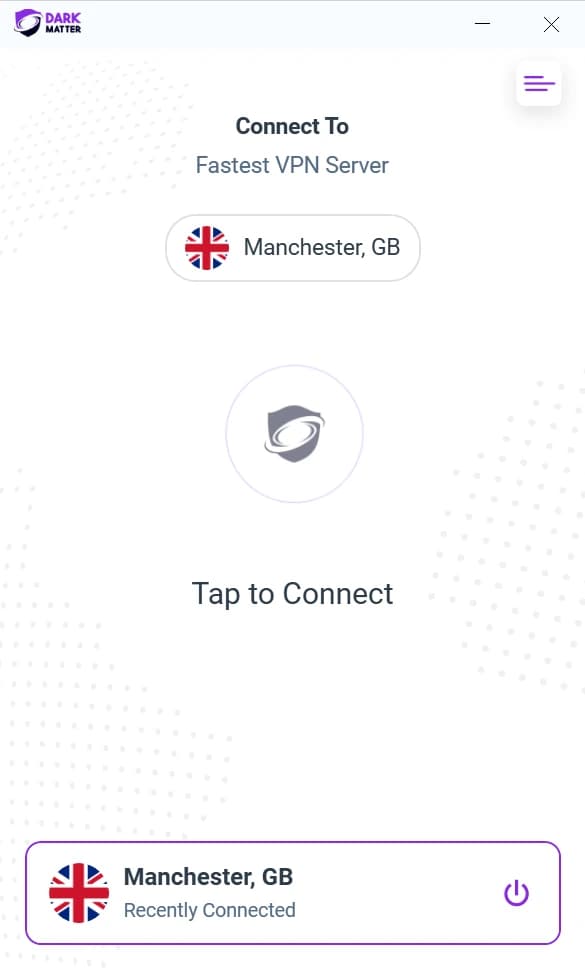
The Windows app before you connect: choose a location, then connect with one click. The place you used most recently stays at the bottom. 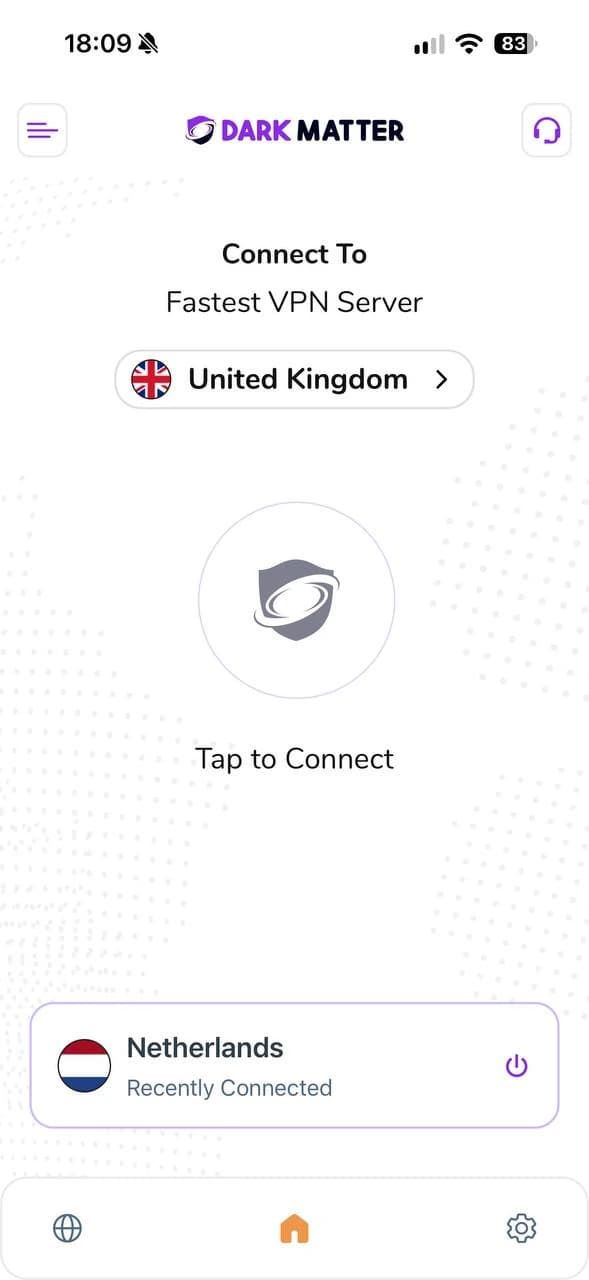
On iPhone, choose a country, then connect with one tap. Your most recent location stays at the bottom of the screen. 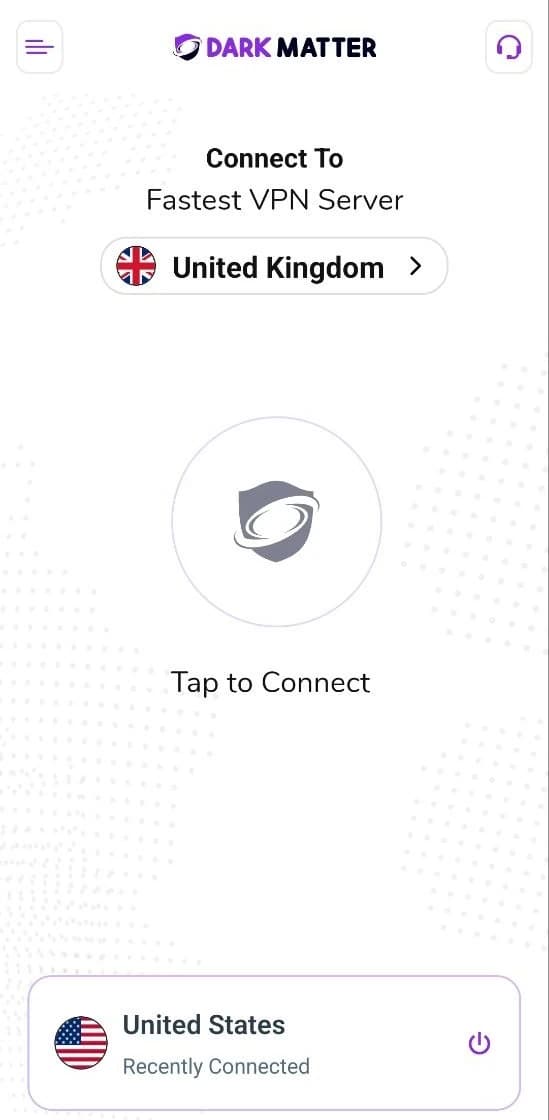
On an Android phone, pick the country you want and connect with one tap. The place you connected to last is kept at the bottom.
Connect
Connect with one tap on a phone or tablet, or one click on Windows. The app then shows that you’re connected.
Connected
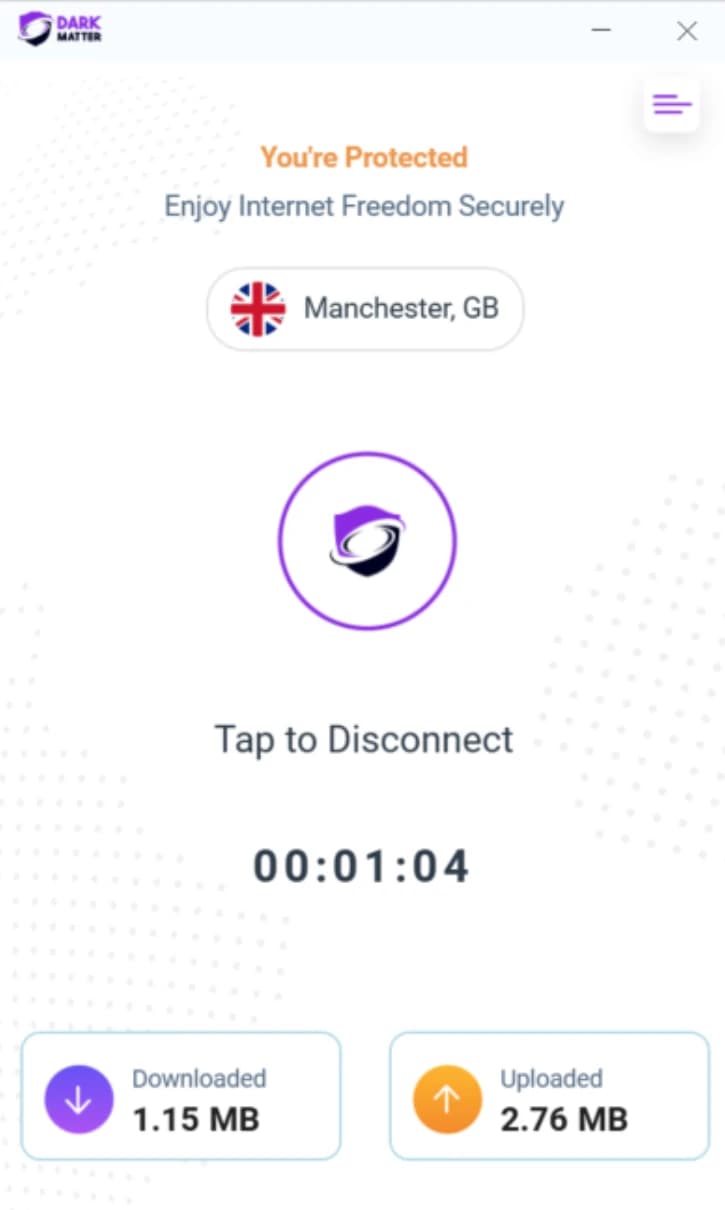
On Windows, the app sits in a small window of its own and shows where you’re connected and for how long. 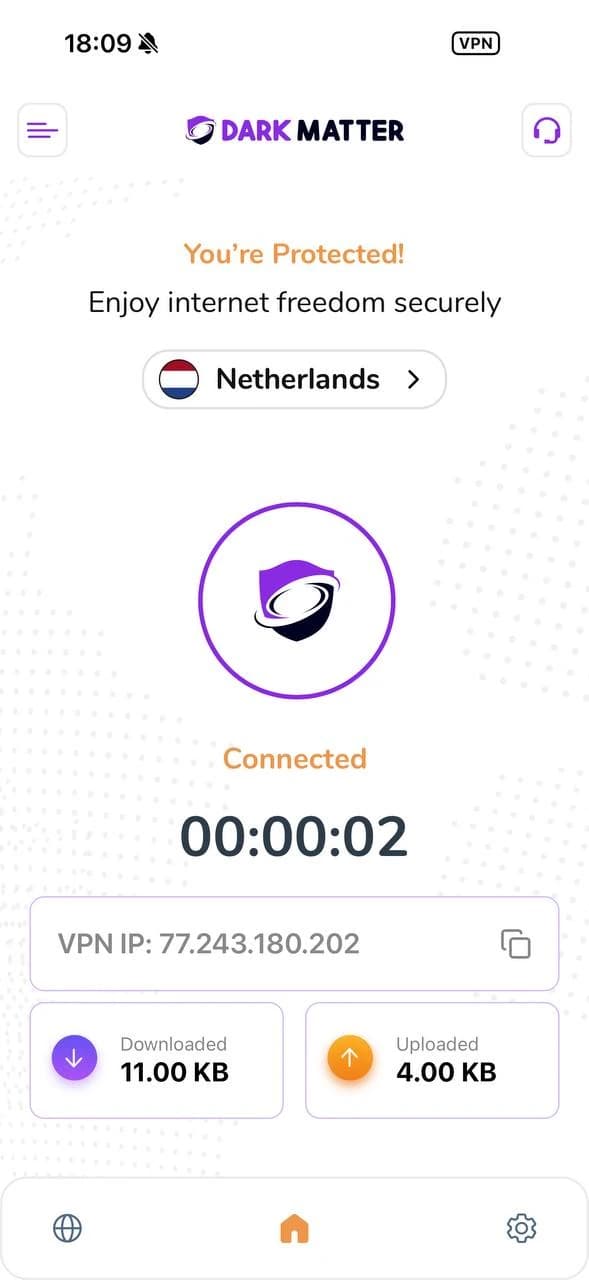
On iPhone, the app tells you when you’re connected and which VPN IP address you’re using, and here iOS also shows its own VPN indicator in the status bar. 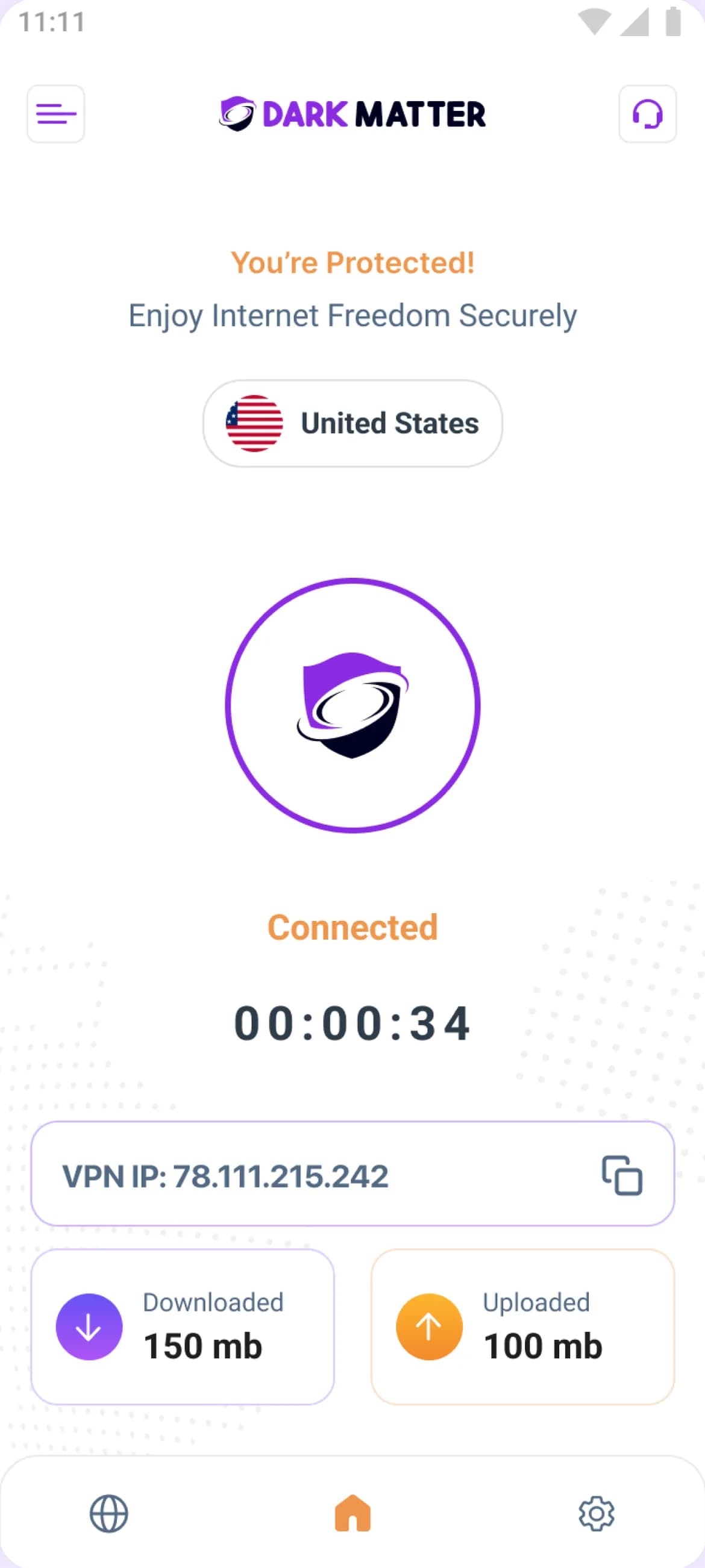
The Android app’s home screen while you’re connected: the country you chose, how long you’ve been connected, and the IP address websites see.
Check it’s working
On the phone, tablet or computer you’ve just connected, open our IP checker in its browser: it shows the IP address websites see. With DarkMatter connected, websites see the VPN server’s IP address and location instead of yours.
Our WebRTC leak test checks whether your browser reveals another address.
Troubleshooting
If it won’t connect
- Check that your internet works with the VPN turned off.
- Try a different server, and if that doesn’t help, a different protocol in the app.
- Make sure the app is up to date.
- Some networks block VPN connections, so we can’t promise it will connect everywhere.
The help centre has more steps. If you’re still stuck, email support@darkmattervpn.com or open a ticket. We usually reply within one working day.
Help for your device
Not a customer yet?
Every plan includes every feature and covers up to 5 devices at once, with apps for Windows, macOS, iOS, Android and Fire TV.
- 30-day money-back guarantee on your first purchase (14 days on monthly plans)
- Up to 5 devices at once
- Windows, macOS, iOS, Android and Fire TV