
Apps
Get DarkMatter on your computer, phone, tablet and Fire TVGet DarkMatter on your computer, iPhone and iPad
One plan covers up to 5 devices at once. Download DarkMatter for Windows or macOS here, or get it from the App Store, Google Play or the Amazon Appstore, then sign in with the same account on each.One plan covers up to 5 devices at once. Download DarkMatter for Windows or macOS here, or get it from the App Store, then sign in with the same account on each.
- 30-day money-back guarantee on your first purchase (14 days on monthly plans)
- Up to 5 devices at once
- Windows, macOS, iOS, Android and Fire TV
Choose your device
Apps for Windows, macOS, iOS, Android and Fire TVApps for Windows, macOS and iOS
Free to download. You’ll need a DarkMatter plan to connect.
DarkMatter VPN for Windows includes open-source software. Get the source code.
A closer look
What the Windows, iPhone and Android apps look likeWhat the Windows and iPhone apps look like
One real screen from each app.
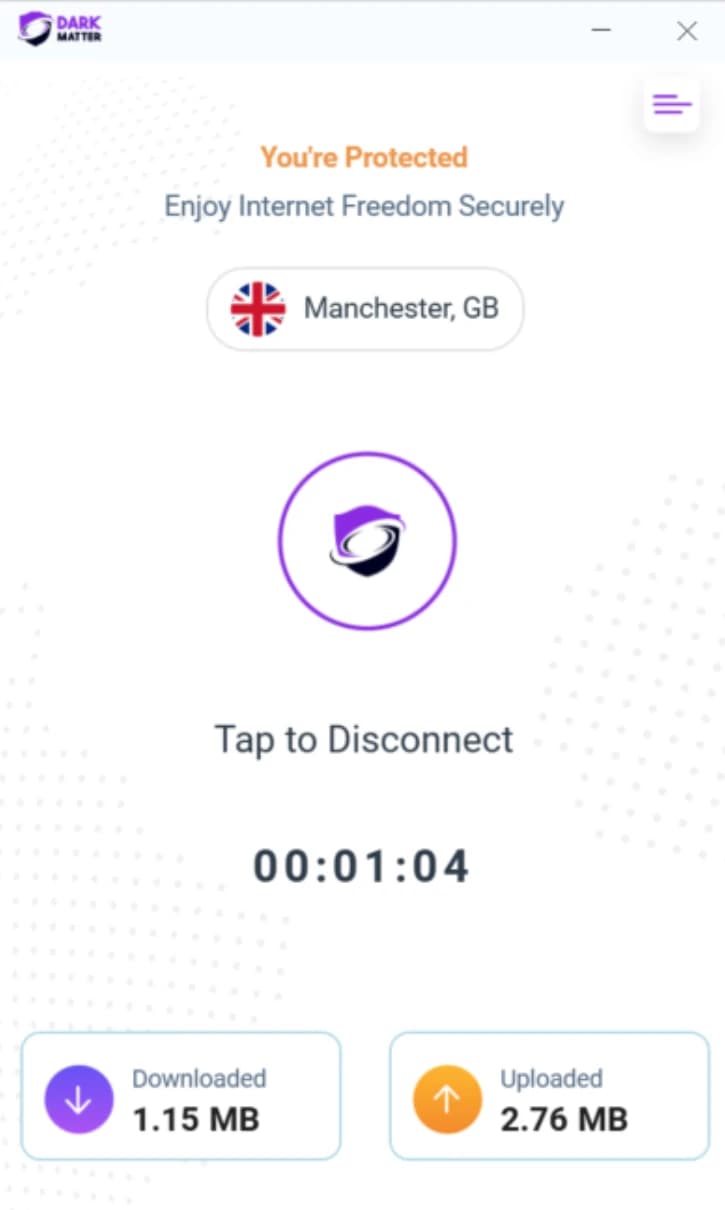
On Windows, the app sits in a small window of its own and shows where you’re connected and for how long. 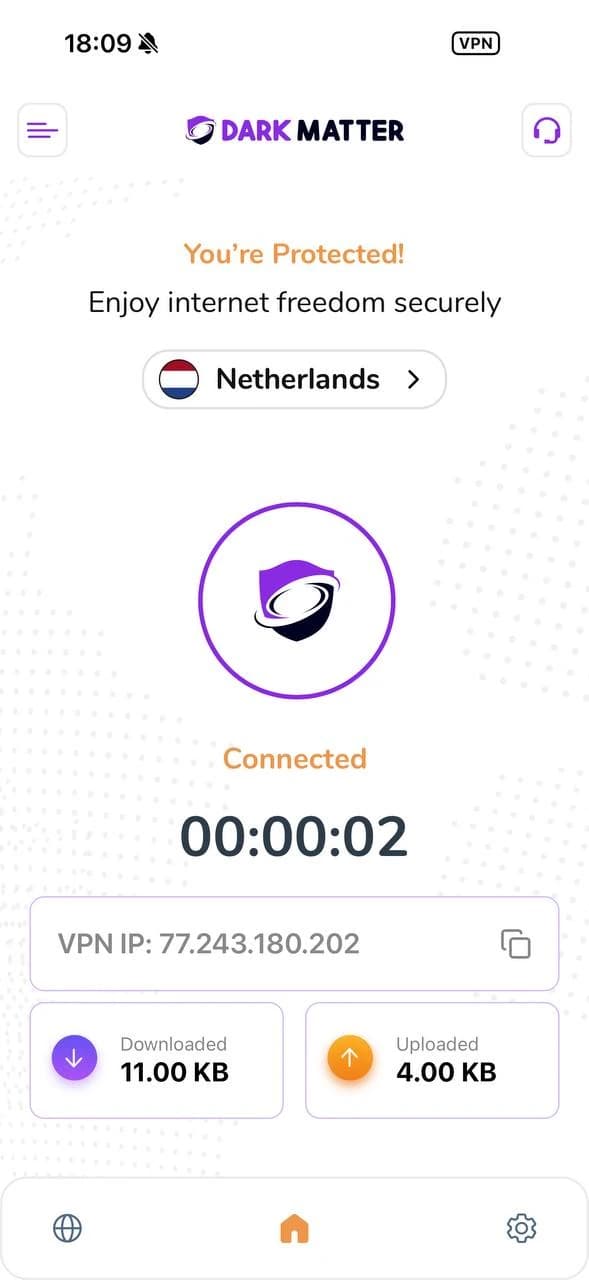
On iPhone, the app tells you when you’re connected and which VPN IP address you’re using, and here iOS also shows its own VPN indicator in the status bar. 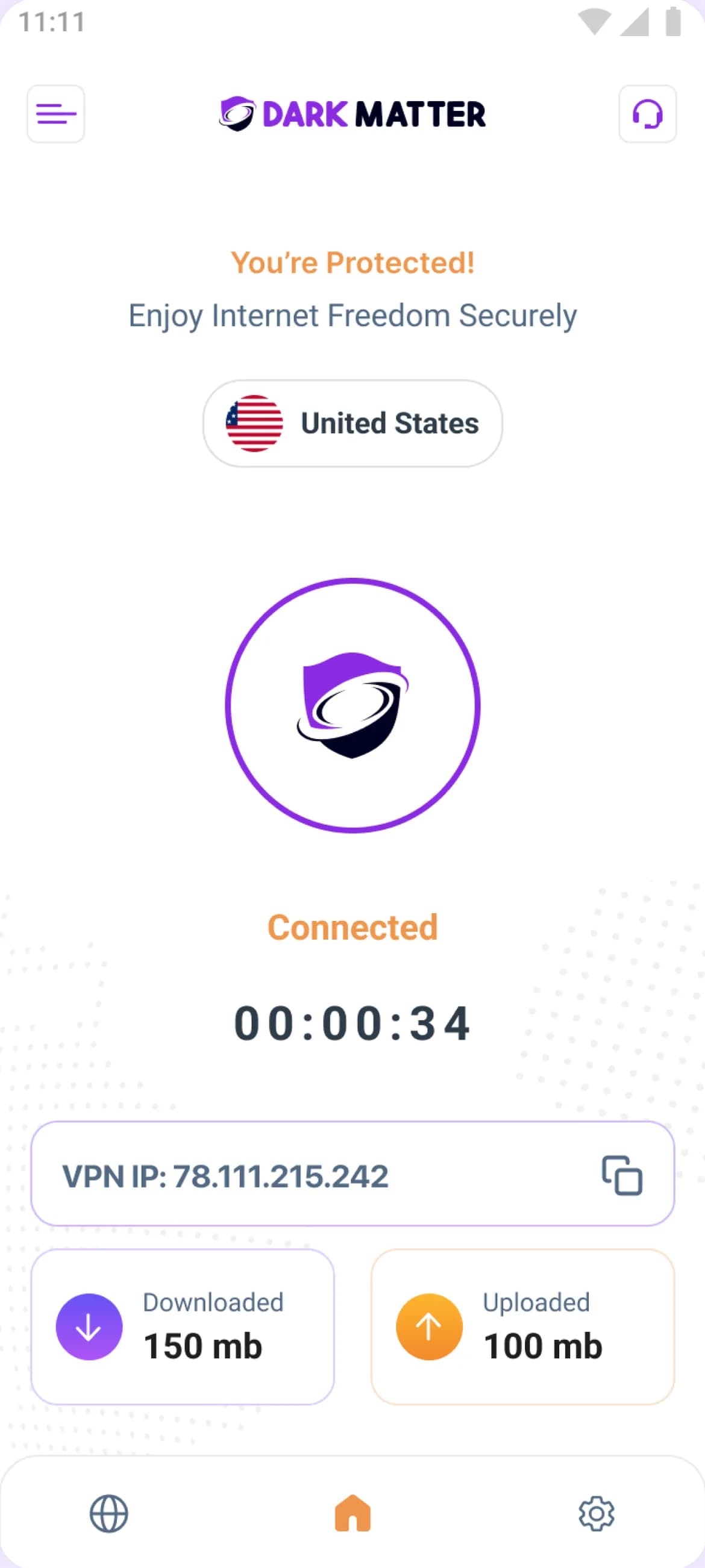
The Android app’s home screen while you’re connected: the country you chose, how long you’ve been connected, and the IP address websites see.
How it works
Get started in three steps
Choose a plan
Every plan covers up to 5 devices at once. Compare plans.
Install the app
Download DarkMatter for Windows or macOS from this page, or get it from the App Store, Google Play or the Amazon Appstore.Sign in and connect
Sign in with your DarkMatter account, approve the one-time prompt your device shows for VPN apps, and connect.
See your first connection step by step, with real screens from the apps
Whichever device you use
Every app includes
The basics that come with your plan on each platform.
One account for all your apps
Sign in with the same DarkMatter account on each device.
Up to 5 devices at once
Use any mix of Windows, macOS, iOS, Android and Fire TV on one plan.Use any mix of Windows, macOS and iOS on one plan.
Our global network
Connect to a network of 6,000+ servers in 65+ countries.
An encrypted connection
Your traffic travels through an encrypted tunnel to a VPN server, and sites see the server’s IP address rather than yours.
Money-back guarantee
On your first purchase on this website: 30 days, or 14 days on monthly plans.
Help from our support team
Email support@darkmattervpn.com or open a request from your account. We usually reply within one working day.
Settings can differ between platforms, and each app shows what’s available on that device. See the features included with your plan.
Questions about the apps
Are the DarkMatter apps free?
The apps are free to download, but you need a DarkMatter plan to connect. One plan covers all your apps, on up to 5 devices at once. See plans.
How many devices can I use at once?
Up to 5 at the same time, on any mix of Windows, macOS, iOS, Android and Fire TV. Sign in with the same DarkMatter account on each one.
Up to 5 at the same time, on any mix of Windows, macOS and iOS. Sign in with the same DarkMatter account on each one.
Should I buy on the website or in an app store?
Either works. Your first purchase on this website is covered by our money-back guarantee (30 days, or 14 days on monthly plans). Purchases made through the App Store or Google Play follow the store’s own refund rules instead. Our refund policy has the details.
Where do I find my sign-in details?
Sign in to the apps with the email and password for your DarkMatter account. After you buy, the Downloads page in your account has the apps in one place, and if an app asks for a VPN username, it can show yours once you’ve confirmed it’s you.
Why does Windows warn me when I run the installer?
Our Windows installer isn’t code-signed yet, so Windows may show “Windows protected your PC” before it runs. Choose More info, then Run anyway, but only for an installer you downloaded from this website. The Windows set-up steps walk you through it.
Why does my Mac ask me to approve a system extension?
The Mac app uses a macOS system extension to create the secure tunnel, so macOS asks you to approve it the first time you connect. Approve it in System Settings › Privacy & Security, then allow the VPN configuration. It’s a standard, one-time step for Mac VPN apps. See the Mac set-up steps.
Where should I download the apps from?
Only from this website or the official app stores. The Windows and macOS installers are served from this website; the iPhone, iPad and Android apps come from the App Store and Google Play, and the Fire TV app from the Amazon Appstore. If you come across a DarkMatter installer anywhere else, don’t run it.
Only from this website or the App Store. The Windows and macOS installers are served from this website, and the iPhone and iPad app comes from the App Store. If you come across a DarkMatter installer anywhere else, don’t run it.
Is there a DarkMatter app for Fire TV?
Yes. Get DarkMatter VPN from the Amazon Appstore on your Fire TV, then sign in with your DarkMatter account. The Fire TV set-up steps walk you through it.
One plan. Up to 5 devices at once.
Choose a plan, install the apps you need and sign in with one account.
- 30-day money-back guarantee on your first purchase (14 days on monthly plans)
- Up to 5 devices at once
- Windows, macOS, iOS, Android and Fire TV