
DarkMatter for Windows
VPN for Windows
Encrypt your PC’s internet connection and hide your IP address from the sites you visit. Download the app, sign in with your DarkMatter account and connect.
- Free to download
- Needs a DarkMatter plan
- 30-day money-back guarantee on your first website purchase (14 days on monthly plans)
If Windows shows a warning
Windows may warn you before running the installer because it isn’t code-signed yet. If you see “Windows protected your PC”, choose More info, then Run anyway.
Only do this for an installer you downloaded from this website. Your browser may also ask you to confirm that you want to keep the file.
Get started
How to set up DarkMatter on Windows
Download the installer
Download the DarkMatter installer for Windows from this website.Run the installer
Open the file you downloaded and follow the steps. Windows may ask you to confirm before it runs the installer or lets it make changes to your device.Sign in
Open DarkMatter and sign in with the email and password for your DarkMatter account.Connect
Choose a server location and connect. To check it’s working, open our IP checker: it shows the IP address websites see.
DarkMatter for Windows at a glance
- Price of the app
- Free to download; needs a DarkMatter plan
- Where to get it
- This website
- File type
- .exe installer
- Download size
- 62 MB
- Code signing
- Not code-signed yet
- Devices per plan
- Up to 5 at once, across all your apps
Only download the installer from this website. If you come across a DarkMatter installer anywhere else, don’t run it.
A closer look
Inside the Windows app
Real screens from the DarkMatter app for Windows.
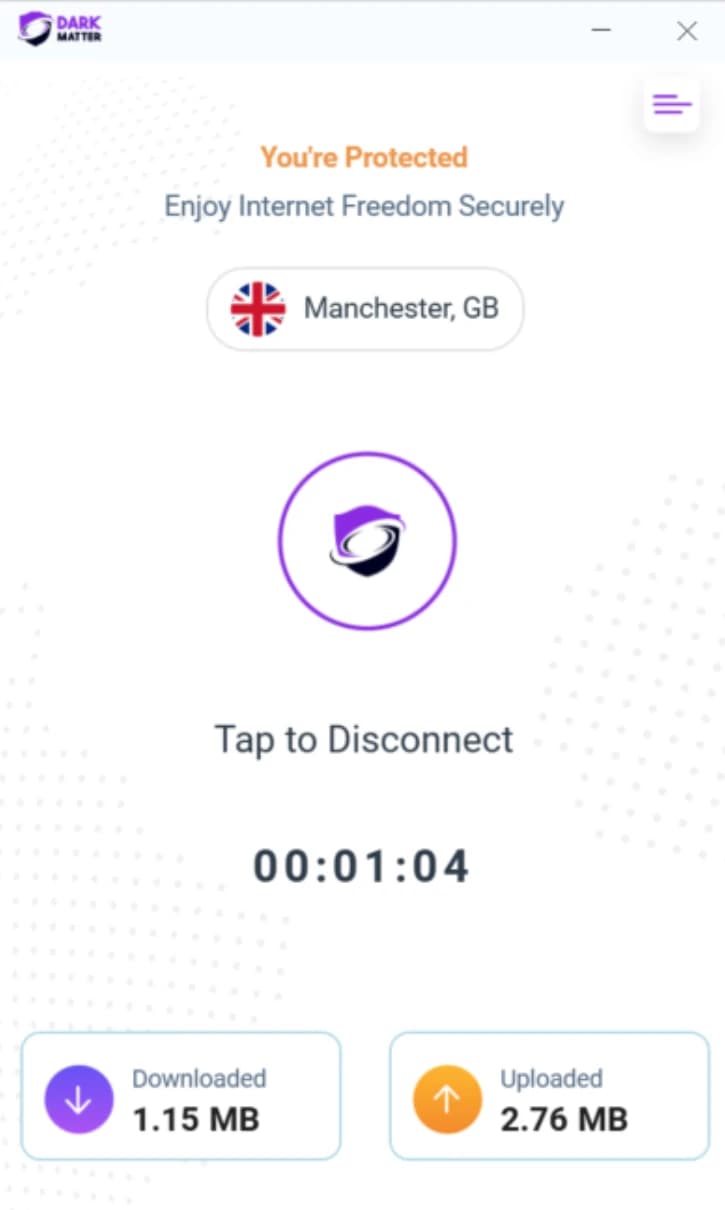
On Windows, the app sits in a small window of its own and shows where you’re connected and for how long. 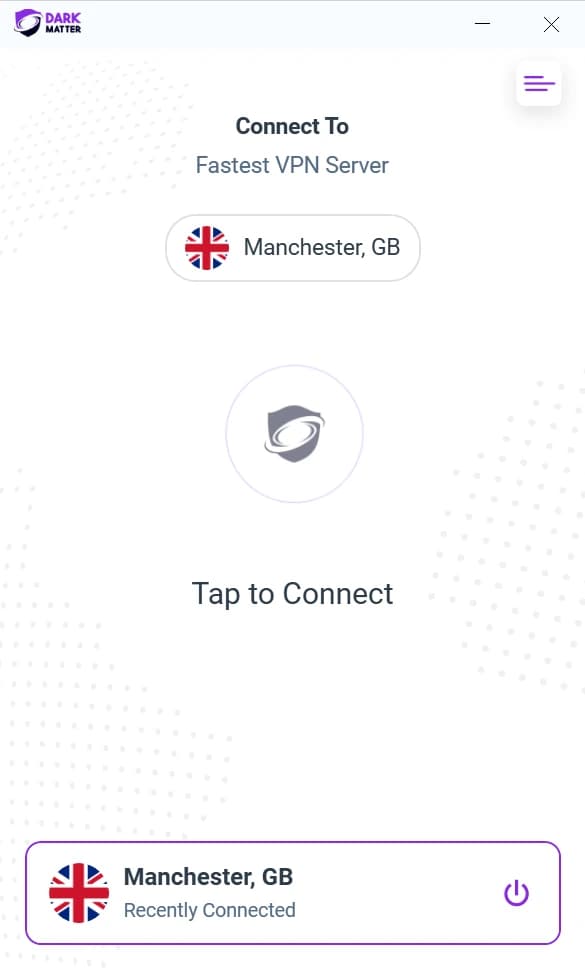
The Windows app before you connect: choose a location, then connect with one click. The place you used most recently stays at the bottom.
Every plan
What comes with your plan
One account for all your apps
Sign in with the same DarkMatter account on each device, and use up to 5 devices at once.
A global server network
Connect to a network of 6,000+ servers in 65+ countries. See server locations.
An encrypted connection
Your traffic travels through an encrypted tunnel to a VPN server, and sites see the server’s IP address rather than yours.
Help from our support team
Email support@darkmattervpn.com or open a request from your account. We usually reply within one working day.
Settings can differ between platforms, and each app shows what’s available on that device. See the features included with your plan.
Help
Windows app questions
How do I install DarkMatter on Windows?
Download the installer from our Windows app page, open the file and follow the steps. Windows may ask you to confirm before the installer makes changes to your device. When it has finished, open DarkMatter, sign in with your DarkMatter account and connect.
Why does Windows warn me before running the installer?
Our Windows installer isn’t code-signed yet, so Windows may show “Windows protected your PC” before it runs. Choose More info, then Run anyway. Only do this for an installer you downloaded from our Windows app page. If you got the file anywhere else, delete it and download it again from us.
I subscribed on the website. Can I use the same account on Windows?
Yes. Sign in to the Windows app with the same email and password you use for your DarkMatter account.
Does my plan cover my Windows PC?
Yes. Your plan belongs to your account rather than to one device, so you can use it on your PC alongside your other devices, within your plan’s device limit.
Can I use DarkMatter alongside another VPN app?
Running two VPN apps at the same time can stop either of them connecting properly. Disconnect or quit the other VPN before you connect with DarkMatter.
The VPN will not connect on Windows. What should I try?
Check that your internet connection works with the VPN switched off, then try a different server location. Security software or a firewall on your PC can block VPN connections, so check whether yours is blocking DarkMatter. Some networks block VPNs altogether, so we can’t promise it will connect everywhere. If it still won’t connect, reinstall using the latest installer from our Windows app page, or email support@darkmattervpn.com.
How do I uninstall DarkMatter from Windows?
Remove it like any other Windows app: open Settings, go to Apps, find DarkMatter in the list and choose Uninstall. Uninstalling the app doesn’t cancel your plan; you can manage your subscription from your account.
Get DarkMatter on your Windows PC
- 30-day money-back guarantee on your first website purchase (14 days on monthly plans)
- Up to 5 devices at once
- Windows, macOS, iOS, Android and Fire TV